
Stock your Kitchen and scan items
Keep your fridge, pantry and freezer current so Sous Chef and your shopping list stay accurate.
- 1
Open the Kitchen tab
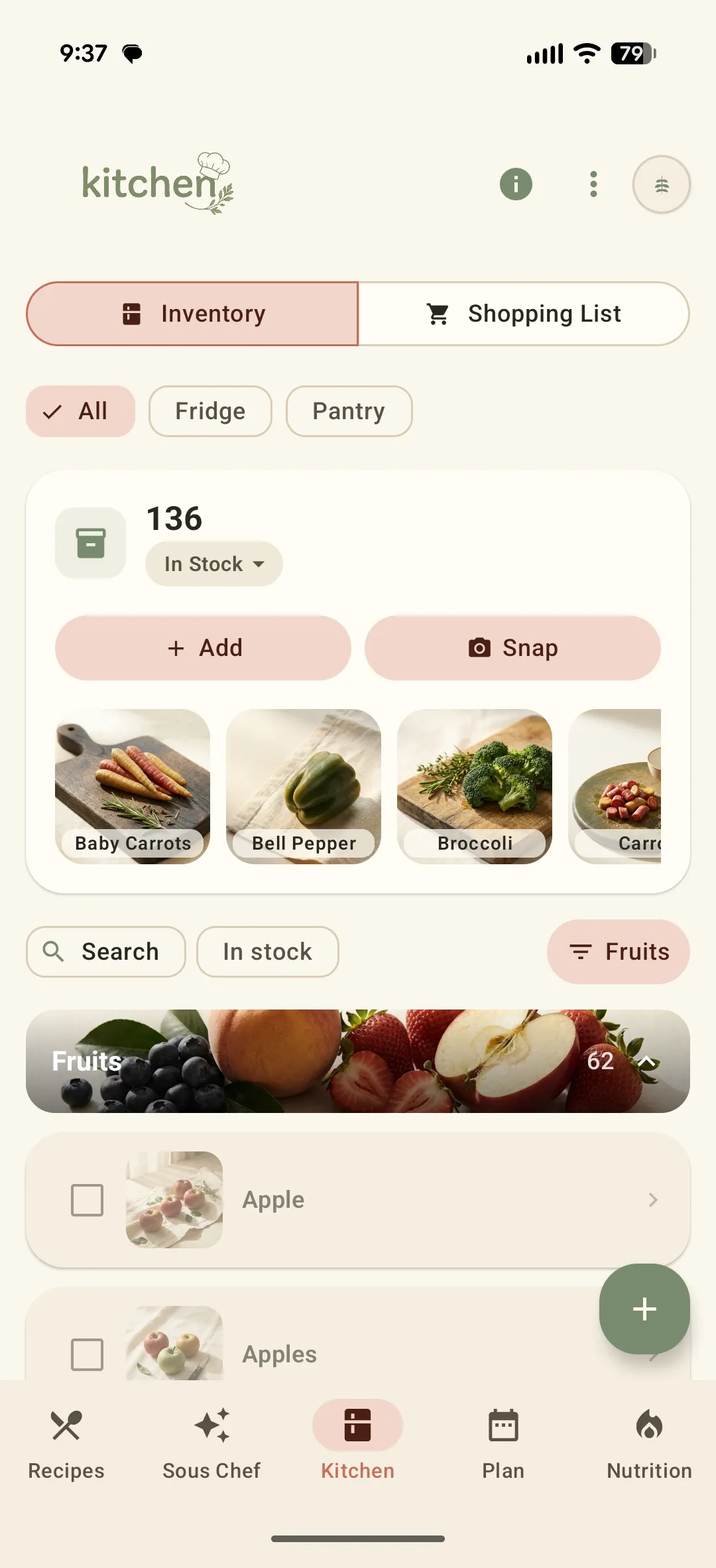
Your Inventory groups everything by Fridge and Pantry. The header shows how many items are in stock, with Add and Snap buttons sitting on top of the ingredient cards.
- 2
Add items by hand or by photo
Tap Add to enter an item yourself, or Snap to add it straight from a photo of your fridge or pantry shelf.
- 3
Scan a receipt
Snap a grocery receipt and Sously fills in the items, quantities and shelf life for you.
- 4
Tap an item for details
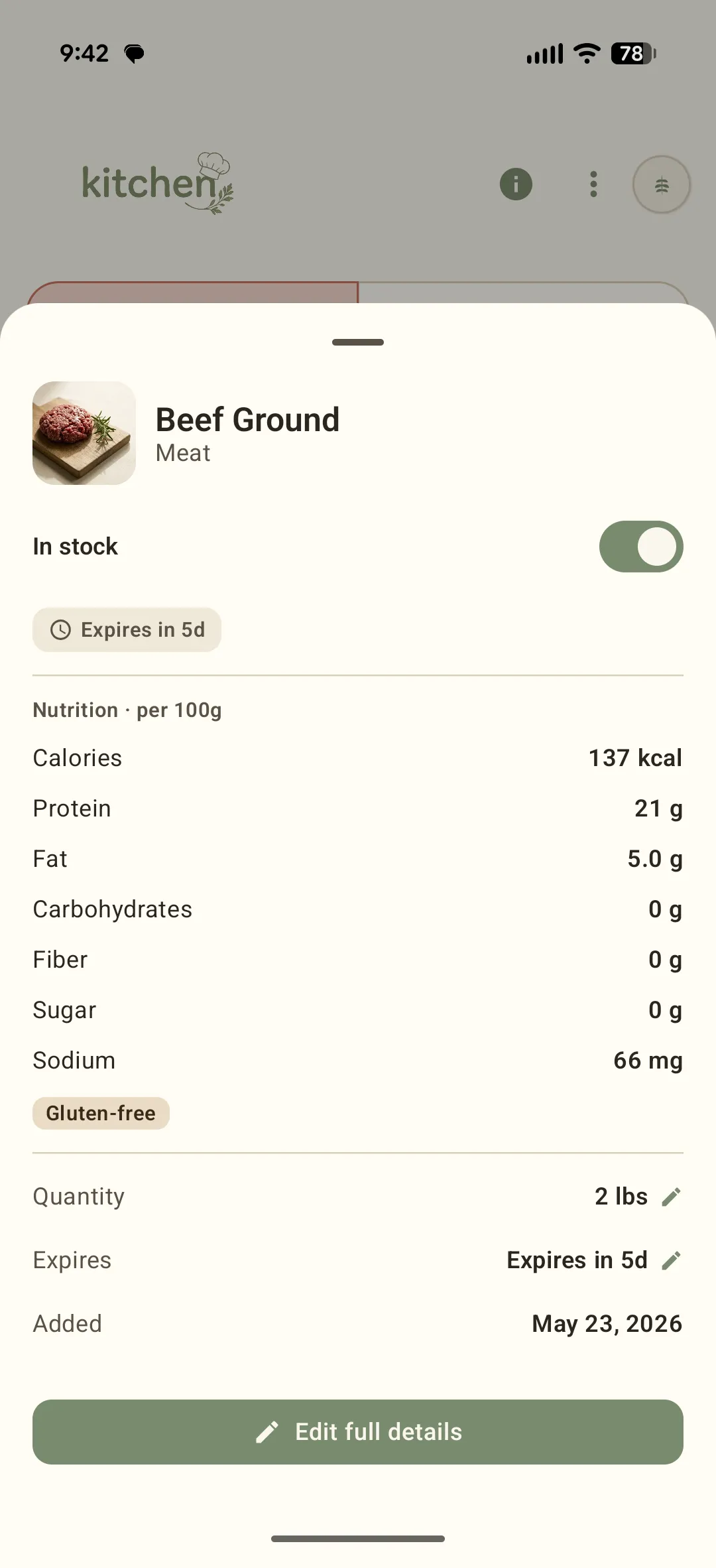
Open any item for its nutrition per 100 g, expiration window, quantity, and dietary tags. Toggle In stock off when you run out.
- 5
Build your Shopping List
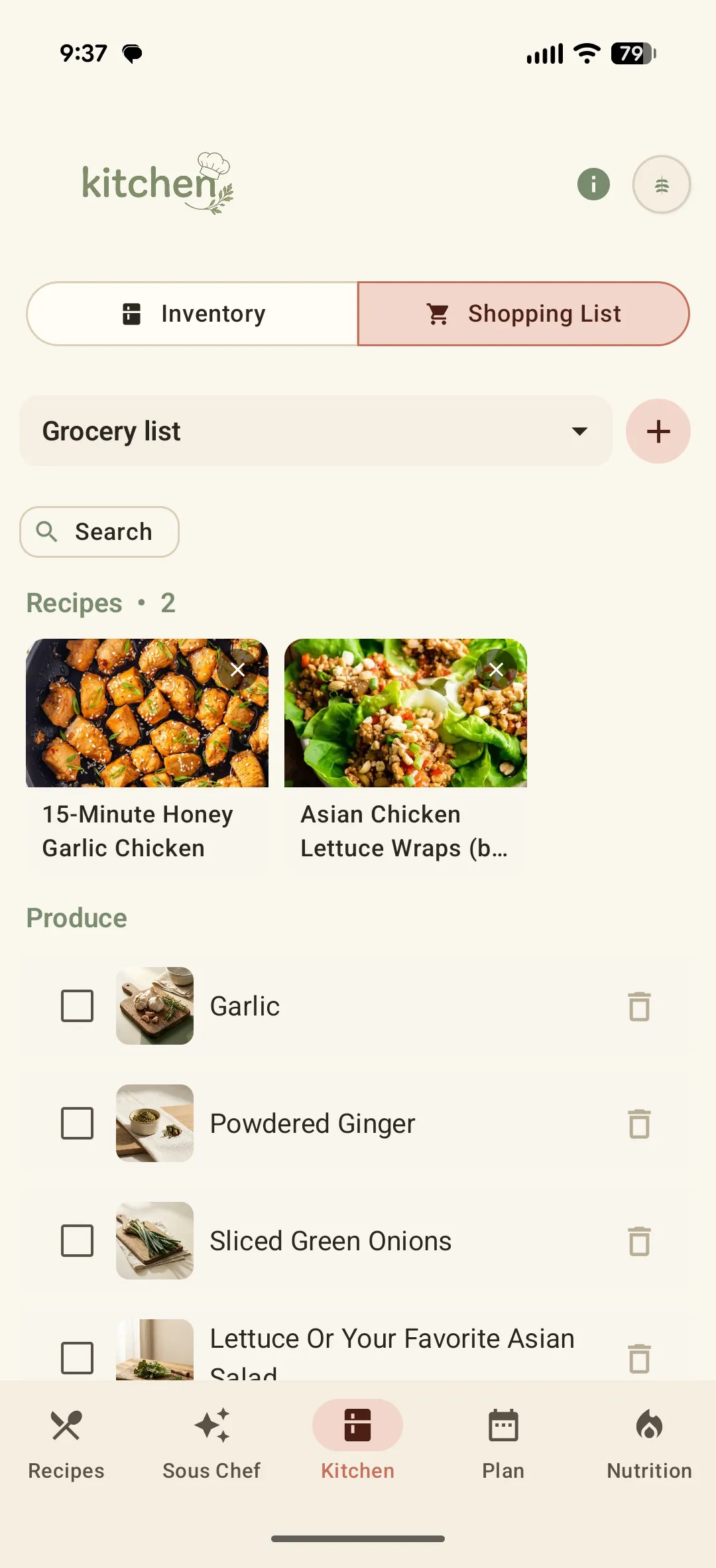
Switch to the Shopping List tab to see ingredients pulled from the recipes you have planned, grouped by aisle. Check items off as you shop.
Didn't find what you needed?
Email [email protected]